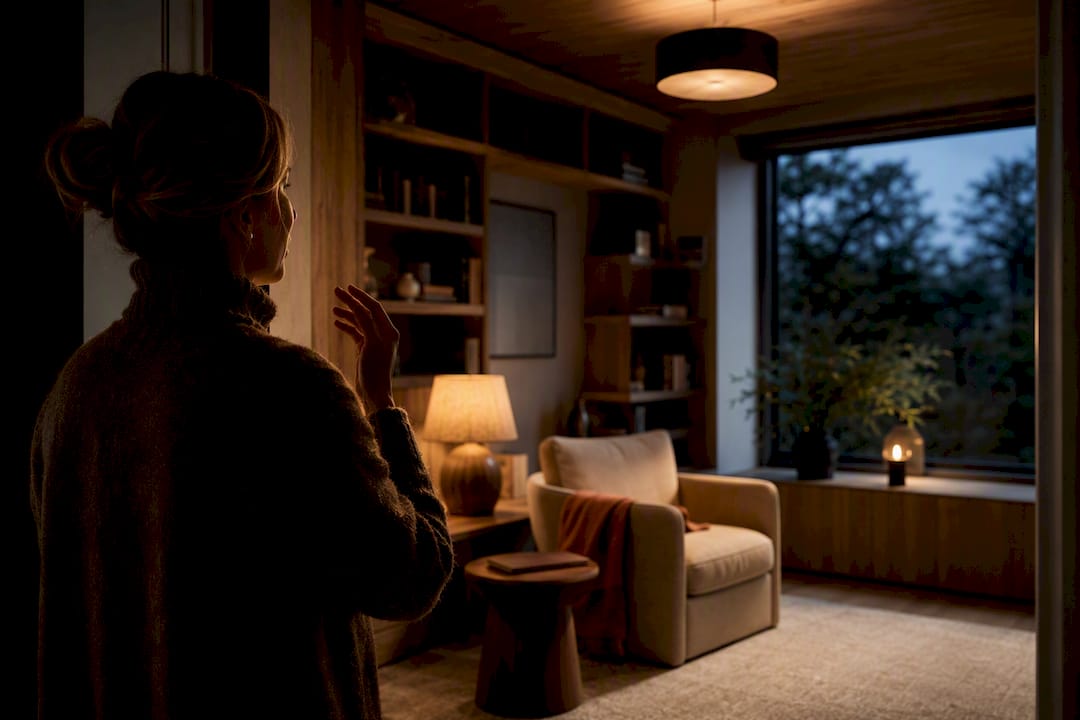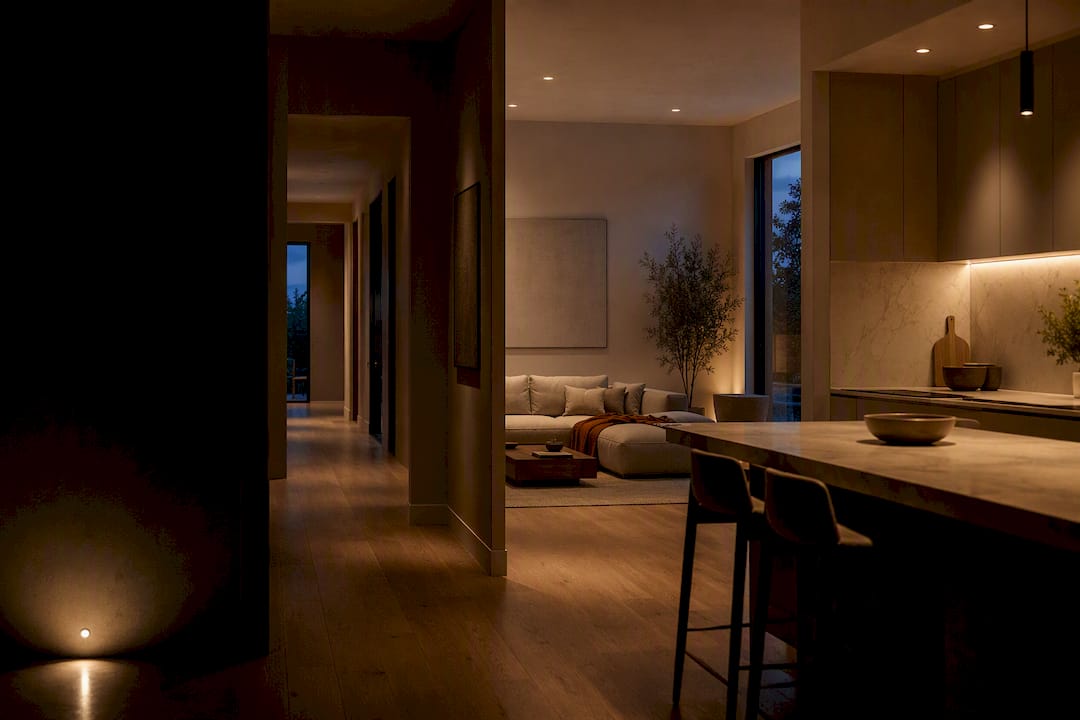
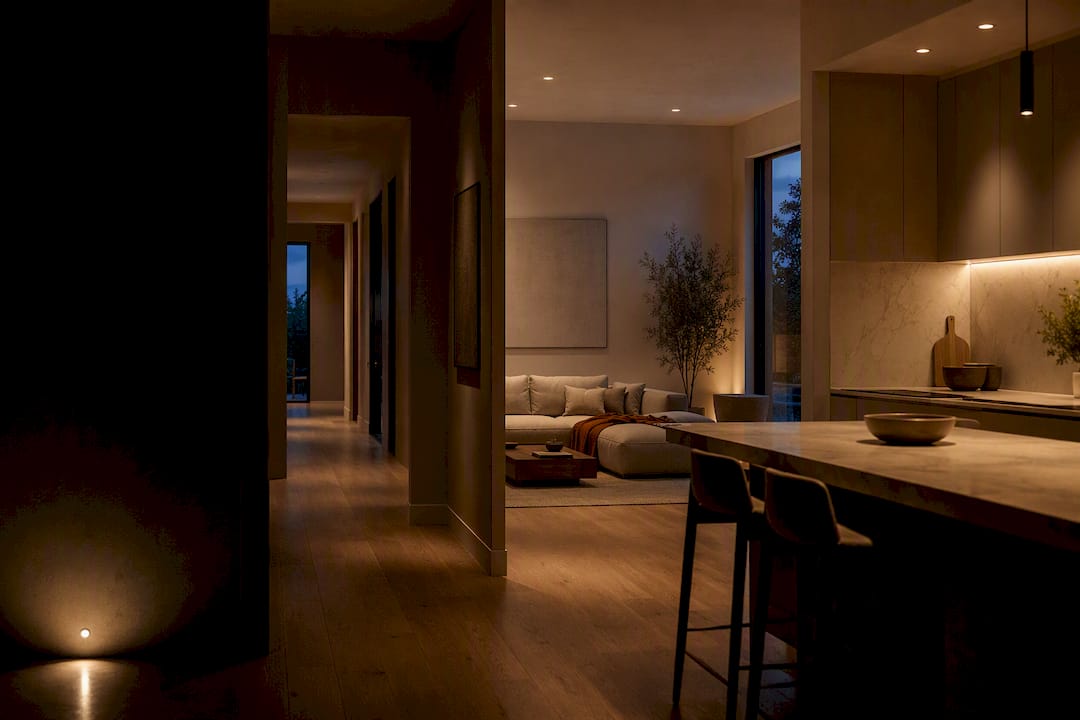
Set up these common smart lighting scenes first: Wake Up, Cooking, Dinner, Movie Night, Relax, Focus, Arrive/Away, and Goodnight. A smart lighting scene is simply a saved combination of brightness, color, and which fixtures turn on together, recalled with one command instead of five taps. Cover those eight and you've handled almost everything your home actually needs, day and night. The recipes and setup steps below get you there fast.
TL;DR:
- Most scenes rely on context-aware triggers like sunset or motion detection, which adapt better than fixed schedules to seasonal and daily variations.
- Consistent color rendering and matching fixture layers are essential to ensure circadian lighting feels natural and effective across different rooms.
- Building scenes around specific fixtures and testing their appearance at the actual trigger time prevents mismatched or harsh lighting effects.
- Scene failures typically stem from connectivity issues, offline devices, or conflicts between voice assistants, which can often be resolved with simple troubleshooting.
- Implementing a small set of core scenes first and adjusting transitions over time helps create a natural, comfortable lighting environment without extensive trial and error.
Table of Contents
- Priority Smart Lighting Scenes You Can Copy Today
- Why Some Scenes Feel Right and Others Feel Off
- How to Build and Trigger a Scene, Step by Step
- Room-by-Room Scene Settings Worth Copying
- When Scenes Stop Working (and How to Fix Them)
- The Connected Dwelling's Quick Setup Checklist
- Start Small and Let Your Scenes Evolve
- Get a Lighting Plan Built Around Your Rooms, Not Generic Presets
- Sources
- FAQ
Priority Smart Lighting Scenes You Can Copy Today
These eight cover the routines nearly every household repeats daily, a pattern confirmed by smart home guides that track the scenes people actually keep using instead of abandoning after the novelty fades. Adjust the numbers to your fixtures, but start here.
- Wake Up. Ramps gradually over several minutes, shifting from a warm color to a cooler one. Trigger: time or an alarm integration. Use case: gentle light instead of a jarring full-brightness snap.
- Cooking. Bright task lighting with cooler color temperatures. Trigger: a wall switch or motion at the counter. Use case: real visibility for knife work.
- Dinner. Moderate brightness with warm color temperature, focusing on table and accent fixtures. Trigger: voice command or a button by the table.
- Movie Night. Low brightness with warm tone, keeping accent lighting on while main ambient lights are off. Trigger: TV input detection or a remote button.
- Relax. Soft, warm lighting blending ambient and accent layers. Trigger: voice or scheduled evening time.
- Focus. Bright, cooler lighting primarily at the desk, with dimmer lights elsewhere. Trigger: manual switch or calendar integration.
- Arrive/Away. Lights on upon arrival at dusk; mostly off with one security light when away. Trigger: presence detection or geofencing.
- Goodnight. Lights fade to off over several minutes, with optional low-level hallway nightlight. Trigger: voice, bedside button, or motion timeout.
Why Some Scenes Feel Right and Others Feel Off
Good scenes don't just look nice once. They hold up after the novelty wears off, and that comes down to a few design choices most people skip.
- Context beats the clock. A scene triggered by sunset or a door sensor adapts as the seasons shift; a scene locked to "7:00 PM" drifts out of sync with actual dusk within weeks. Research on context-aware lighting backs solar and presence triggers over rigid schedules for exactly this reason.
- Circadian lighting is about more than warm versus cool. Shifting color temperature helps you wind down or wake up, but the effect depends on consistent color rendering across fixtures, not just a number on a slider. Mismatched CRI between bulbs is one of the more overlooked reasons circadian setups feel inconsistent.
- Layer before you automate. Map your ambient, task, and accent fixtures first (our layered lighting guide walks through this), then build scenes that dim or brighten specific layers together instead of everything at once.
- Transitions matter more than final brightness. A light that snaps from off to 100% feels harsh even at the right color temperature.
Pro Tip: Set every scene's transition time to at least two seconds. It costs nothing and it's the single easiest fix for lighting that feels abrupt instead of calm.
How to Build and Trigger a Scene, Step by Step
The process is the same no matter which app or hub you use: pick your devices, record the state you want, choose a trigger, and add a manual override so you're never stuck if the automation fails.
- Pick the devices. Group only the fixtures that logically belong to one moment, like the table lamp and pendant for Dinner, not every bulb in the house.
- Record the desired state. Set each fixture to the brightness and color you want, then save that snapshot as the scene.
- Choose the trigger. Time works for predictable routines like Wake Up. Presence or motion suits Arrive/Away and Cooking. A physical button or voice command gives you an instant manual override for Movie Night or Goodnight.
- Test at the real trigger time, then add an override. A scene that looks great at noon can look completely wrong when it actually fires at dusk, so test it then. Keep one physical switch mapped to "everything off" for guests or when automation misbehaves.
Voice triggers are fast but fail quietly when a hub drops offline; physical buttons are slower but almost never fail. Use both where it matters.
In Home Assistant, you'll typically choose between scene.turn_on, which recalls a saved snapshot exactly as stored, and scene.apply, which lets you push states dynamically without saving them permanently first. Home Assistant's own scene documentation confirms transitions work for lights, though support varies by device, so test each bulb model individually. Scripts layer on top when you need a scene to trigger a sequence, like Cooking turning on task lights and switching off Relax mode.
Zigbee2MQTT users choose between scene_store, which saves the current live state of your devices, and scene_add, which lets you define specific attributes and transition times up front. Zigbee2MQTT's documentation notes that scene_store can quietly override a previously saved scene, so name and number your scenes carefully before you start layering automations on top.
Room-by-Room Scene Settings Worth Copying
- Bedroom: Wake ramp from 10% to 70% over 15 to 20 minutes at 2200K to 4000K; evening Goodnight fades to 5% at 2700K over two minutes.
- Living room: Movie Night at 5% to 10% with accents only; Relax at 30%, 2700K, ambient plus accent layers. Our warm modern living room recipe shows one full setup.
- Kitchen: Cooking at 100%, 4000K to 5000K task lighting, with a quick manual override switch since automated triggers can lag during actual meal prep.
- Porch and hall: Arrival scene at 80% for two minutes on motion, then dropping to a 10% safety-night level until dawn.
- Naming: Keep it short and consistent, room plus trigger, like "Kitchen: Cooking" or "Bedroom: Goodnight," so voice commands and app lists stay easy to scan.
When Scenes Stop Working (and How to Fix Them)
Most scene failures trace back to one of a handful of causes, and they're usually quick to diagnose.
- Offline or unresponsive scenes: Check the hub's network connection first, then confirm the specific bulb or switch still shows as online in the app.
- Bulb versus switch tradeoffs: Smart bulbs give you color and dimming per fixture, but a dead bulb loses its smart features entirely. A smart switch paired with a few key smart bulbs is usually the more durable combination for main rooms.
- Voice assistant conflicts: If two assistants both listen for the same phrase, disable the scene name in one to avoid double triggering.
- Energy use: Scenes built around occupancy and solar triggers cut idle runtime meaningfully compared with lights left on fixed schedules, since layered, sensor-driven setups only run what's actually needed.
- Privacy: Presence-based triggers rely on location or motion data, so check what your hub stores and for how long before enabling geofencing broadly.
The Connected Dwelling's Quick Setup Checklist
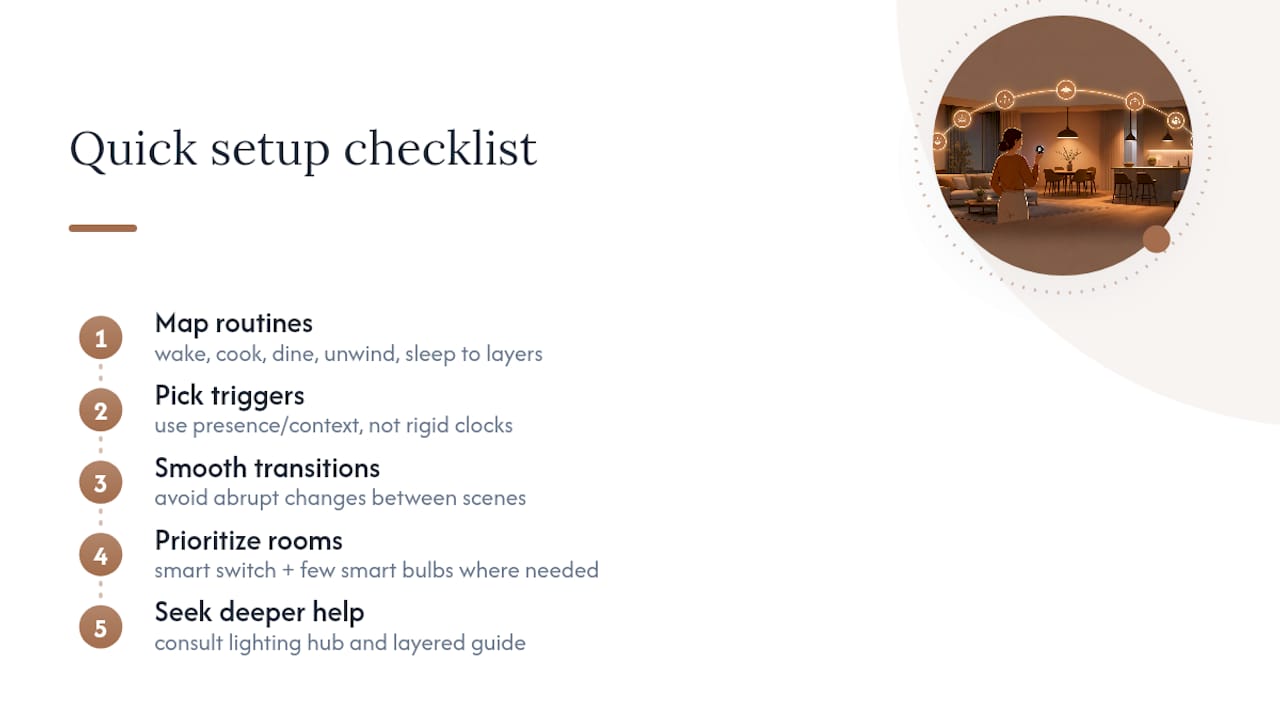
Start from your actual routines, not a feature list. Map wake, cook, dine, unwind, and sleep to your lighting layers, then pick triggers that fit each one. Favor context and presence over rigid clocks, and keep transitions smooth. Pair a reliable smart switch with a few well-placed smart bulbs for the rooms that matter most. For deeper design help, our lighting hub and layered lighting guide go further than any single article can.
Start Small and Let Your Scenes Evolve
Pick two or three scenes and live with them for a week before adding more. A Goodnight scene that dims too fast the first night is easy to fix once you actually notice it in the dark.
Get a Lighting Plan Built Around Your Rooms, Not Generic Presets
This site offers an alternative to guessing at brightness percentages and color temperatures on your own. Instead of trial-and-error scene building, guides can give you room-specific parameter suggestions and product picks matched to how each space actually gets used.
If you want a tailored plan or specific product recommendations for your bedroom, kitchen, or living room setup, our lighting resources walk through exact settings and fixture pairings for the rooms people ask about most. Browse the room recipes, pick the one closest to your layout, and adjust the numbers from there. You'll skip the weeks of trial runs most people spend getting scenes to feel right.
Sources
- 11 useful smart home scenes I recommend everyone sets up — HowToGeek
- Scene integration — Home Assistant
- Scenes — Zigbee2MQTT documentation
- Mindful Photons — Context-aware lighting (MIT Media Lab)
- Smart home lighting scenarios and setup tips — Vesternet
FAQ
Can You Give Me an Example of Smart Lighting?
A Goodnight scene that fades your bedroom lamp and hallway light to 5% warm brightness over two minutes, triggered by a bedside button or voice command, is a simple, complete example.
What Are the Scenes in Philips Hue?
Hue's app offers preset moods like Energize, Concentrate, Read, and Relax, plus custom scenes you build yourself, and its ecosystem also supports wake and sleep routines tied to time or entertainment sync.
What Are the Downsides of Smart Lighting?
The main downsides are connectivity dependence, occasional voice assistant conflicts, and the fact that a smart bulb loses all its smart features the moment it fails, unlike a smart switch controlling a standard bulb.
Do Smart Lights Raise the Electric Bill?
Not usually. Scenes built around presence and solar triggers tend to reduce idle runtime compared with lights left on fixed schedules, since fixtures only activate when a room is actually in use.